How to Check Word Count in Word: A Step-by-Step Guide
Posted on 5th October by Admin
Microsoft Word is a widely-used tool, ideal for everything from academic writing to business reports. Knowing how to perform a word count is often essential for meeting content requirements, whether you’re submitting an essay, a blog post, or a business proposal.
This guide will walk you through several methods to check the word count in Microsoft Word, helping you meet your content’s length requirements and maintain the quality of your writing across different formats.
Why Word Count Is Important
Word count plays a significant role across a wide range of writing contexts. In academic writing, for example, strict word limits are usually imposed on essays, dissertations, and research papers. These limits are designed to encourage students to communicate their ideas clearly and efficiently, while demonstrating their ability to prioritise relevant information. Submitting work that falls short of, or exceeds, the required word count can lead to the loss of marks, as it suggests either a lack of depth or an inability to remain concise and focused.
In professional and business settings, adhering to a specific word count is equally important. Reports, proposals, and executive summaries are often read by busy professionals who value precision and brevity. Keeping within an appropriate length ensures that key points are conveyed effectively without overwhelming the reader with unnecessary detail. A well-balanced word count can therefore improve both clarity and the overall impact of your communication.
For writers, bloggers, and content marketers, word count is also a critical factor in achieving success online. Search engines tend to favour content that strikes the right balance between depth and readability. Articles that are too short may not provide enough value to rank highly, while excessively long pieces can lose readers’ attention. Maintaining an optimal word count helps ensure that content meets search engine optimisation (SEO) standards while keeping readers engaged.
If you’d like to explore in more detail how word limits influence readability, engagement, and SEO performance, you can refer to this comprehensive and practical SEO Guide, which offers further insights and strategies.
Understanding the word count in Microsoft Word helps you manage your writing better. For example, when writing blog posts for SEO, keeping your content within the recommended length improves your visibility on search engines proofreading services to ensure your content is both concise and effective.
If you’re also interested in streamlining your document formatting, check out our guide on using styles in Microsoft Word. Proper formatting not only makes your document look professional but also improves readability, especially for long documents.
How to Check the Word Count in Microsoft Word
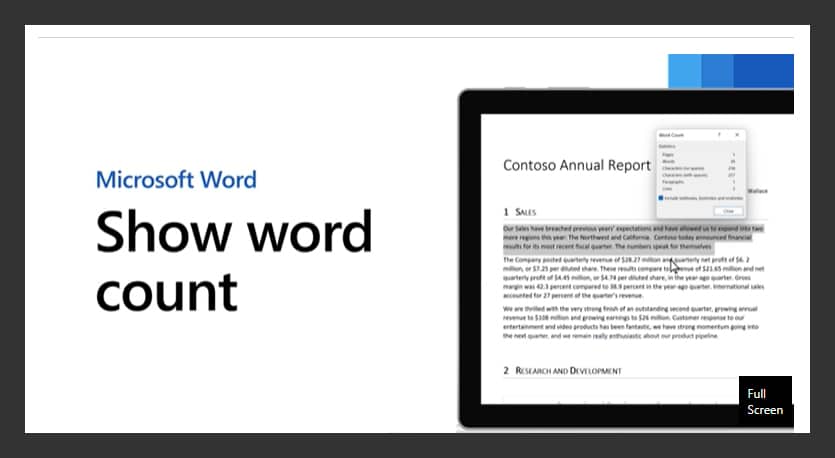
Microsoft Word offers multiple ways to check the word count, from a quick glance at the status bar to detailed statistics through the Word Count tool. Let’s explore these methods.
1. Using the Status Bar
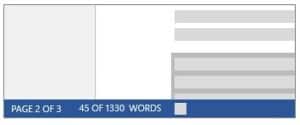
The quickest way to check word count in is through the status bar at the bottom of your document window.
Open your Word document.
Look at the bottom left corner where you’ll see the word count displayed.
If you highlight specific text, the status bar will show the word count for the selected text as well as the total document word count (e.g., 500/2,000 words).
This method is perfect for those who need quick access to the word count. For students and academic writers, being aware of the word count for specific sections (e.g., introductions or conclusions) can help meet assignment requirements. If you need additional support with adhering to word limits, consider our academic proofreading service at Proofers. Our team will happily assist you with keeping your text within the limitations set.
2. Using the Word Count Tool
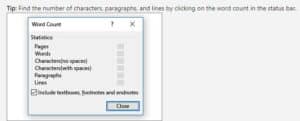
For a detailed breakdown, you can use the Word Count tool, which provides more comprehensive information, including the number of characters, pages, and paragraphs.
Open your document in Word.
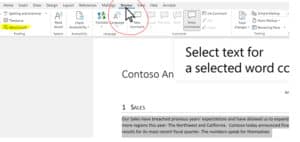
Click on the Review tab.
In the Proofing section, click Word Count.
A dialogue box will appear with detailed statistics, including the number of words, characters (with and without spaces), pages, paragraphs, and lines.
This method is especially useful when you’re working on content with character count limits. For additional details on how word count affects content writing, you may want to refer to Yoast’s guide.
3. Counting Words in Specific Sections
Sometimes you need to check the word count for only a portion of the document, such as an introduction or a specific chapter.
Highlight the section of text you want to count.
The status bar will show the word count for the highlighted section and the total word count for the document.
For more details, open the Word Count Tool to see other statistics related to the highlighted section.
This method is particularly useful for ensuring different parts of your document adhere to specific length requirements.
4. Keyboard Shortcut for Word Count
If you prefer to use keyboard shortcuts, Microsoft Word has a quick option for checking word tally.
Press Ctrl + Shift + G on Windows or Command + Shift + G on Mac. This shortcut will instantly open the Word Count dialogue box, giving you immediate access to detailed statistics without having to navigate through the toolbar.
Word Count when using Microsoft Word 365
For those who prefer to use Word Online, checking word count is just as straightforward.
Open your document in Word Online via Microsoft 365.
Click on the Review tab.
Select Word Count to view the total number of words, characters, paragraphs, and more.
Common Pitfalls to Avoid
While Microsoft Word’s word count feature is undoubtedly a useful tool, it is not without its limitations. There are several important considerations to bear in mind when relying on it to assess the length of your document. For instance, Word may treat certain elements—such as footnotes, endnotes, text boxes, or hidden text—differently depending on your settings. Similarly, tables, captions, and headers or footers might not always be included in the total word count.
It is also worth remembering that formatting choices, such as the use of hyphens, dashes, or special symbols, can sometimes affect the way words are counted. If you are preparing an academic paper, professional report, or submission with strict word limits, it is essential to double-check how the count is being calculated to ensure it aligns with the required guidelines.
In short, while Word’s word count provides a convenient estimate, taking a moment to verify the details can help you avoid unintentional errors or misunderstandings when submitting your work:
Excluding Headers, Footers, and Footnotes: Word does not automatically include these in the word count. If these sections are critical, make sure you select the option to include them. For more detailed settings on Word count and document elements, refer to Microsoft’s official help page.
Hidden Text: If your document contains hidden text, it won’t be counted unless you adjust the settings. Open the Word Count tool and check the box for “Include textboxes, footnotes, and endnotes.”
Non-Text Elements: Images, charts, and other non-text elements won’t be counted. Keep this in mind when you’re formatting documents with significant visual content.
If you need help ensuring your document meets word count requirements while maintaining quality and clarity, our professional proofreading service and document formatting service are both available to help.
Conclusion
Mastering how to check word count in Microsoft Word is a crucial skill for any writer, whether you’re drafting a business report, creating SEO-optimised content, or working on an academic paper. Microsoft Word provides several options to check your word count, from the quick status bar glance to more detailed breakdowns through the Word Count tool.
For writers, knowing your word count allows you to better manage content, stay within required limits, and produce high-quality writing. Our professional proofreading service and document formatting service ensure your document meets all requirements before submission. Looking for more Word tips? Read our guide on how to use styles in Microsoft Word for expert advice on professionally formatting your document. Submit your document today.
Looking for more Word tips? Read our guide on how to use styles in Microsoft Word for expert advice on professionally formatting your document. For information on improving your content quality, take a look at the editing services on offer at Proofers.
Some helpful resources:
Document Preparation and Formatting Support
If you are preparing a document for submission and need help beyond checking word count, professional document formatting support can help ensure your work meets presentation and submission requirements while remaining within specified word limits..
Learn how to use styles in MS Word with this comprehensive guide. Discover how applying styles can improve document structure, consistency, and formatting efficiency. Perfect for students and professionals aiming to create professional, well-organised documents with ease in Microsoft Word.
Learn how to create a footnote in Word with our step-by-step guide. Perfect for students and professionals, this blog explains how to add footnotes easily, helping you correctly reference sources and improve the presentation of your academic or professional writing.
Learn how to convert PDF to Word for free with our easy-to-follow guide. We explore the best tools and methods for seamless file conversion, making it simple to edit and format your documents without any hassle. Perfect for students and professionals!